¶ 0.3.9 - 09/10/2021
¶ Field Length Changes
We've modified the following fields to have more characters available (format: Field: OldLength/NewLength):
- WorkOrder
- Notes: 165/65,535
- WorkOrderComplaint:
- Issue: 180/65,535 (formerly known as the
Complaint-- switched to avoid confusion withComplaints being work order line items effectively)
- Issue: 180/65,535 (formerly known as the
- Equipment
- Model: 15/255
- Serial: 15/255
- Brand: 25/255
- Description: 25/255
- Notes: 50/255
These lengths will also be effective on the desktop app as well.
¶ 0.2.94 - 04/05/2021
¶ Assigned Calls Screen
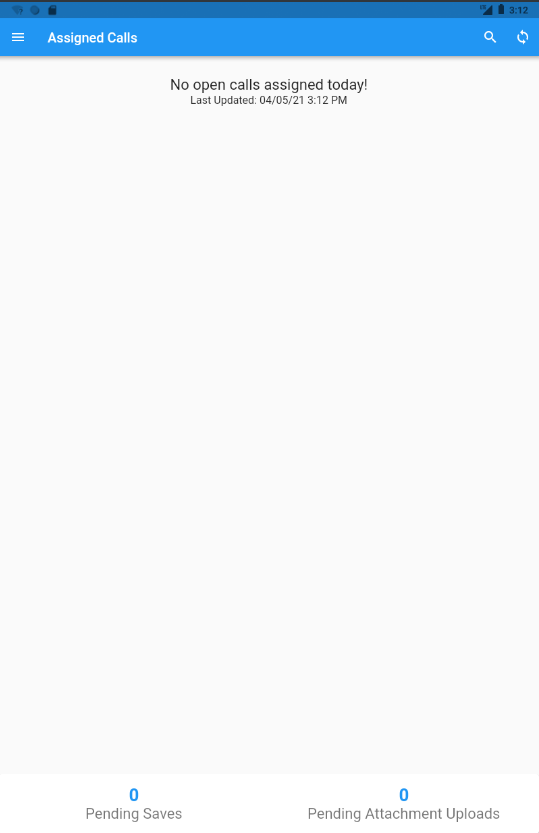
The assigned calls screen will now show users when the calls were last updated with a time stamp at the top of the list. Additionally, the assigned calls screen now has an info section at the bottom that indicates to users how many requests are still in the offline queue and how many attachments are still being uploaded or pending upload. A message has now also been implemented on the assigned calls screen when there are items in the queue indicating to the user how they are able to force a sync for the queue. See example below:
¶ Attachment Changes
We have added compression for images that are uploaded to the ServiSuite app. This reduces the size of attachments by roughly 50-75% while barely affecting the image quality of the attachments. In addition to this, we have removed attachment uploads from the offline queue so that they will no longer block requests/updates/fetching of assigned calls.
¶ View PDF Attachments Within App
PDF attachments within service calls can now be viewed by simply tapping on the PDF attachment.
Note: This does require internet because the attachment needs to be downloaded before viewing.
¶ Minor Additions
- Added
Third PartyBilling option - Complaint text now selectable for copying/pasting
- Implemented sort logic on product search screen
- Updated lengths on create customer/site to match desktop
- Implemented restriction message on attachments greater than 50 MB
- Implemented additional crash logging
¶ Bug Fixes
- Resolved issue where no charge flat rate would have a price on initial add
- Allow quantities greater than 100 for material
- Resolved an issue where the app would sometimes crash when finishing out the call and PDF
¶ Release 0.2.6 - 06/27/2020
¶ Work Order Status Rework
With this update, we've moved away from single code work order statuses (T, S, O for example) and toward description based statuses (i.e. Traveling, On Site, Open). The change should be pretty minor from the technician's perspective but we decided to include it in the release notes just to make sure everyone is aware.
¶ Scheduling Future Contractual Checkups
The biggest feature in this release is the ability for technicians to schedule the next contractual checkup (or maintenance) for the customer before the tech leaves the current checkup. For more information, see the video here:
¶ Release 0.2.5 - 06/06/2020
¶ pulseM Integration
We now support pulseM. Included in this integration is the ability to send tech bios automatically to the customer upon technicians travelling to work orders as well as sending review requests upon finishing up their work at a given call.
¶ Checkup Material
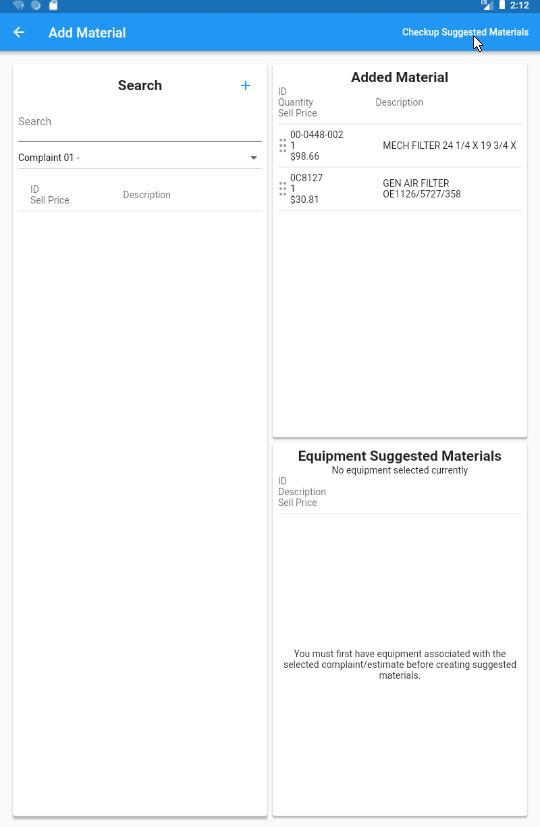
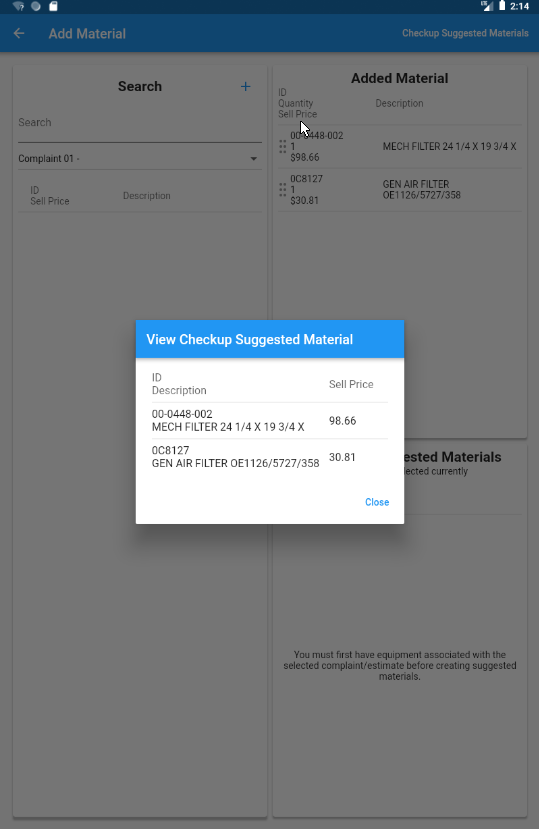
Technicians will now see a labeled button in the top right of the app bar on the add material screens (both regular and flat rate material) in the event that the work order is linked to a contract checkup and that checkup has material on any of its complaints. Upon pressing the button, the technician will be presented with a list of the material and upon tapping on the material, the default add material dialog will show with the quantity defaulting to the quantity specified on the checkup complaint's material.
¶ Email Management
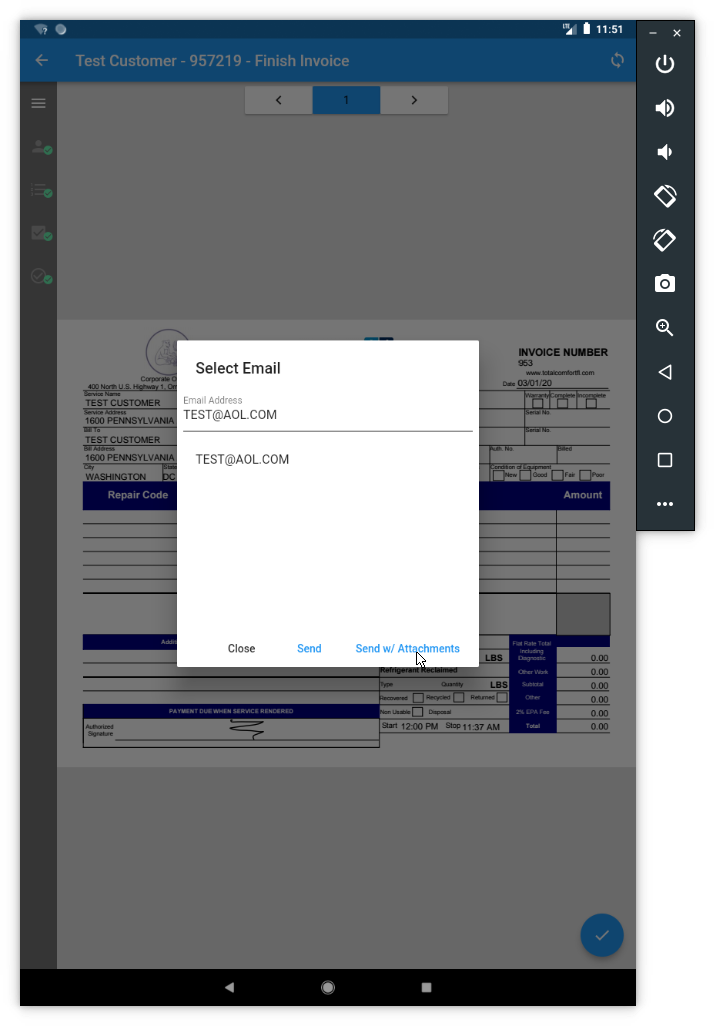
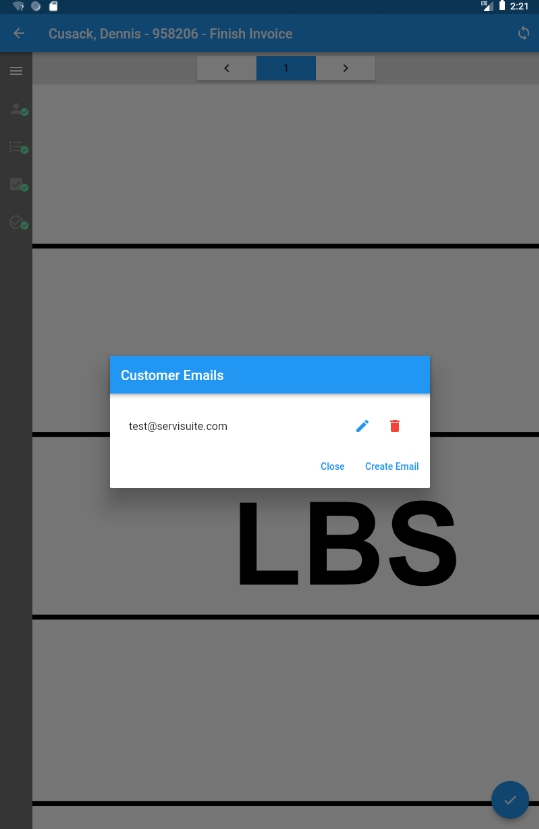
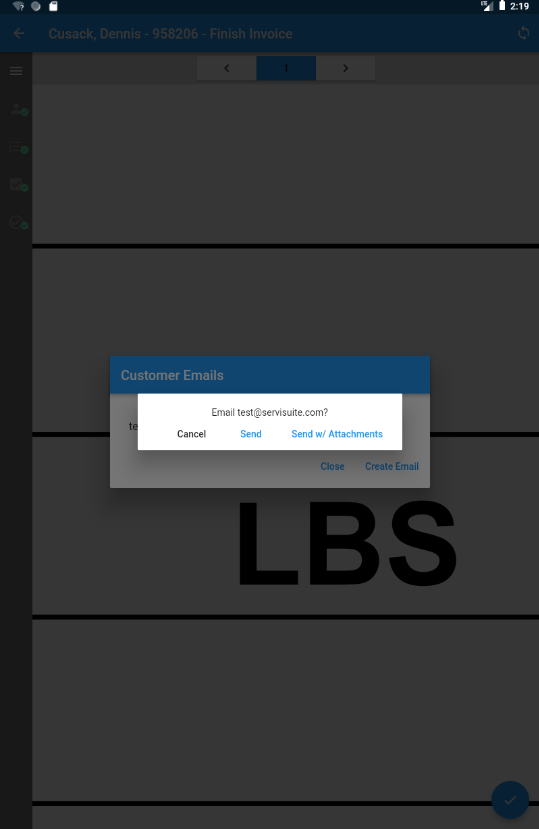
Technicians can now view emails from the work order summary screen as well as add, edit and delete emails. Additionally, upon emailing PDFs to customers, technicians can add, edit and delete emails via the new dialog that appears upon initiating emails. To send an email, the technician now needs to simply tap on the email in the list. If an email doesn't exist, they can create a new one by tapping Create Email.

¶ Bug Fixes
- Fixed dynamic fields not saving if user pressed sidebar item before leaving the dynamic field's text field
- Attempted to fix a rare issue where a pricing mismatch would arise if two complaints had the same line number
¶ Release 0.2.4 - 05/22/2020
¶ In Attic Field on Equipment
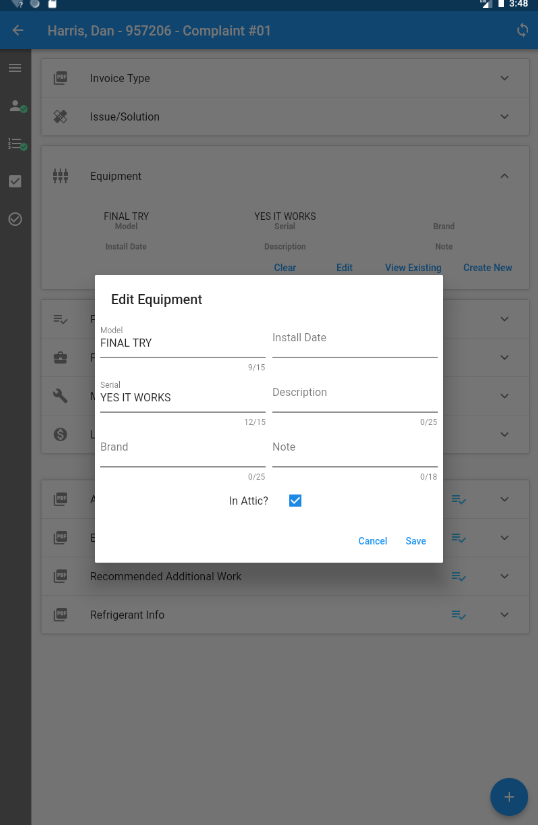
In order for technicians to more clearly indicate to dispatchers that equipment is in an attic and therefore should not be tended do in the middle of a Summer afternoon, we've added the In Attic flag to equipment that can now be managed on the equipment create/edit dialogs.
¶ Release 0.2.3 - 05/17/2020
¶ Suggested Materials
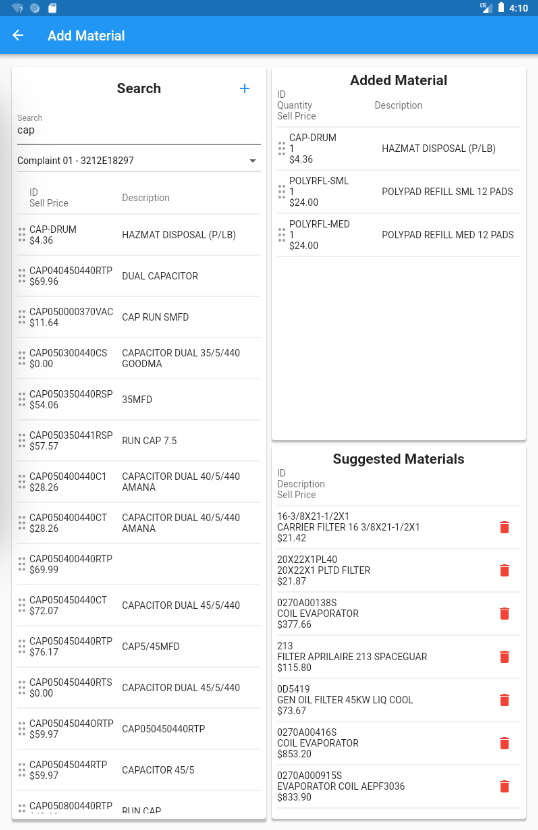
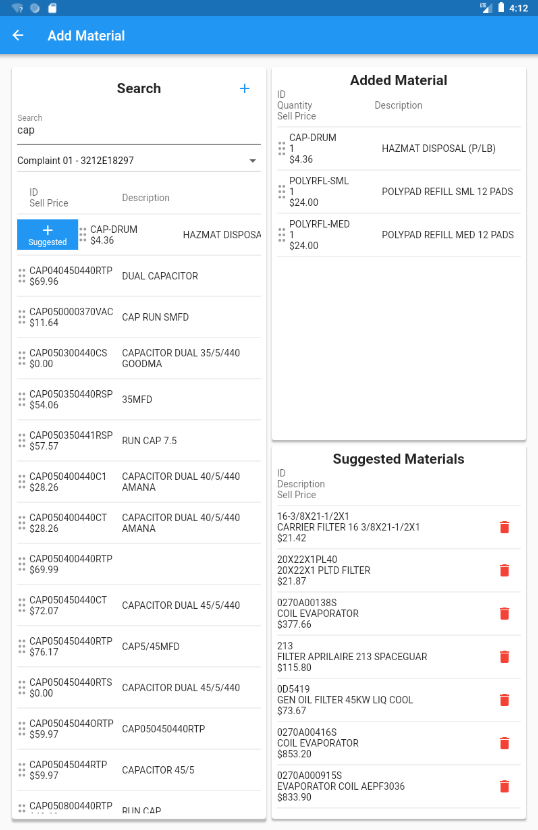
If materials are marked as suggested on a piece of equipment (either by the tech in the field via sliding the search result material and tapping "Suggested" or by a user in the office), the tech can see a separate list of suggested material within his app for any given piece of equipment. This is useful for routine materials like filters for example.
¶ Other Notes
- Auto recompute flat rate primary when only 0 or 1 flat rates exist on a complaint or estimate
- Bug fix to pre-discount pricing on service estimates
- Allow techs to see contract solicitations on the work order summary screen
- Switch work order summary customer/site panels to use new phone number schema instead of phone numbers on the work order.
¶ Release 0.2.2 - 03/10/2020
Changes
We've elected to split up phone numbers on the Customer and SiteAddress models into 3 fields in order to better distinguish what type of phone number.
Previously, the phone number fields on Customer were: SalesPhone and CreditPhone. On SiteAddress, the field was just Phone.
Moving forward, both Customer and SiteAddress will have 3 separate phone fields. They are:
- HomePhone - any phone that is incapable of receiving texts (landline, VoiP, etc.)
- CellPhone - any phone that is capable of receiving texts (cell phones)
- AltPhone - any additional phone number that you would like to use
The software will only use the CellPhone field for texting capabilities that are coming soon.
Anywhere the mobile app lists out phone numbers for the Customer or SiteAddress will now have the new 3 fields to match what the desktop users will see.
¶ Release 0.2.1 - 02/27/2020
Changes
- Add support for job numbers being printed on PDFs
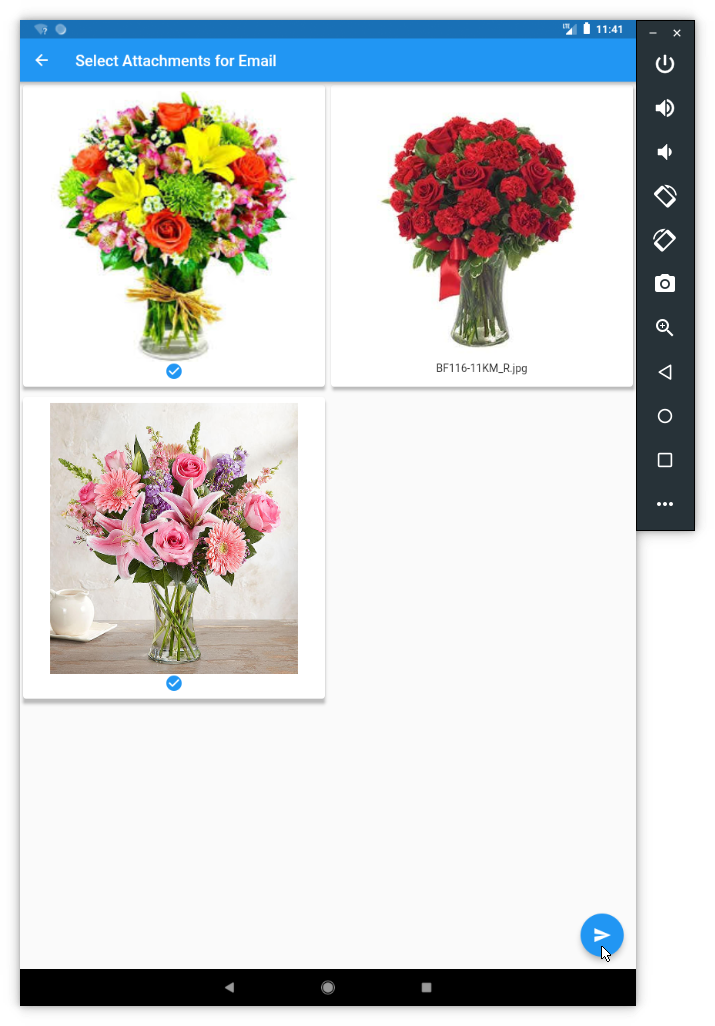
- Add abiliity to selectively choose attachments to be emailed along with PDF
- Fix for the pesky invalid forms error
¶ Screenshots
- Selectively choosing attachments to be emailed